What Google needs from you
| Asset | Google's shape | From StoreToAds |
|---|---|---|
| Landscape image | 1.91:1 (1200x628 recommended) | Every ad at 1200x628 |
| Square image | 1:1 (1200x1200 recommended, 300x300 minimum) | Every ad at 1080x1080 |
| Portrait image (Performance Max) | 4:5 | Every ad at 1080x1350 |
| Logo | Square and landscape logo files | Use your own logo files |
| Headlines and descriptions | Text you type in Google Ads | Reuse the hooks from your best ads |
Google mixes these parts to fit each placement, from a small square in an app to a wide banner on a news site.
Choosing which ads to upload
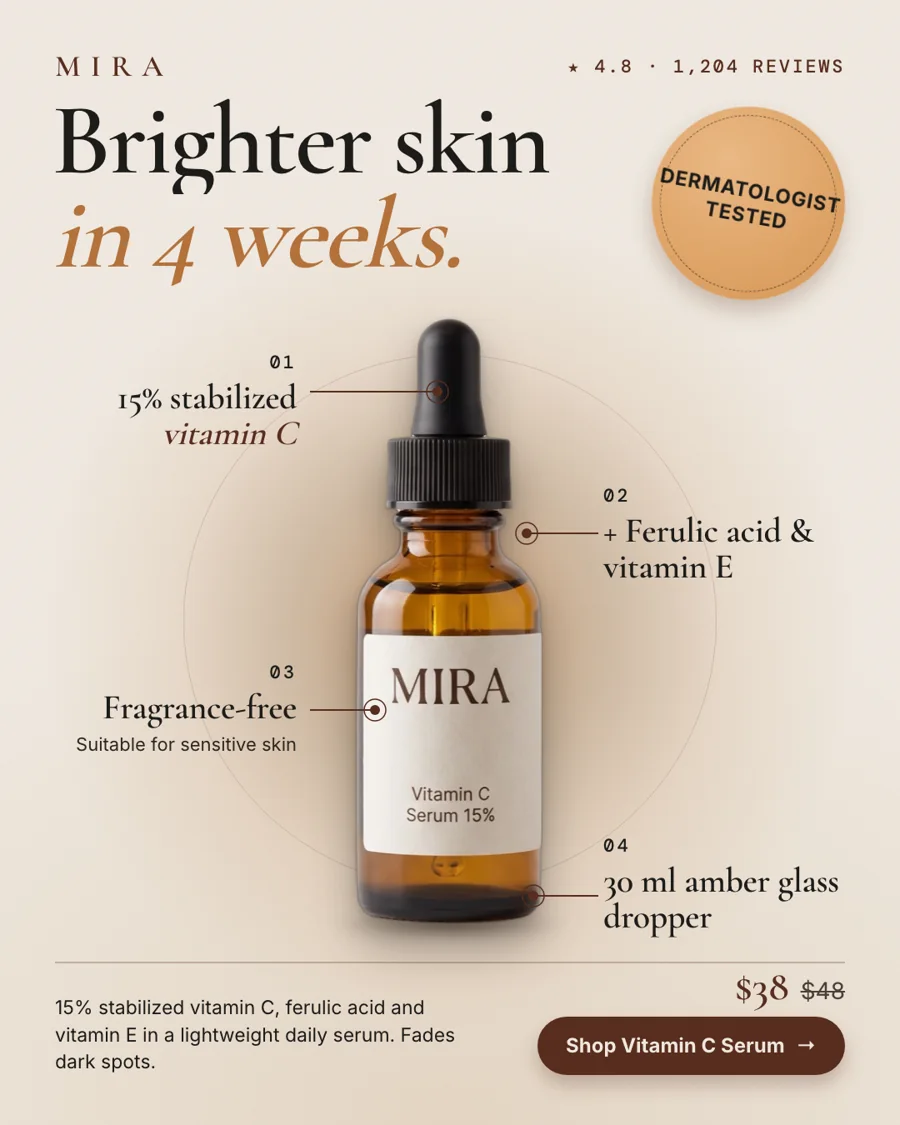
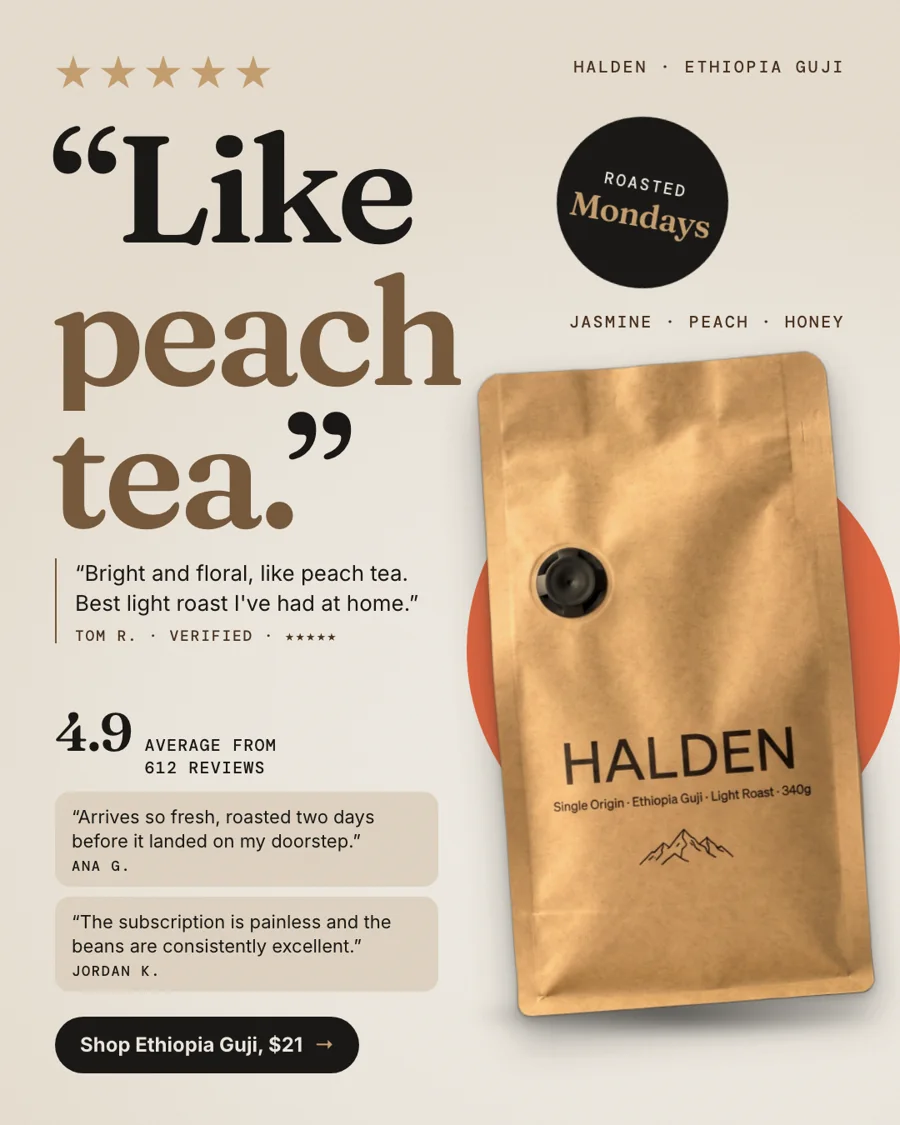
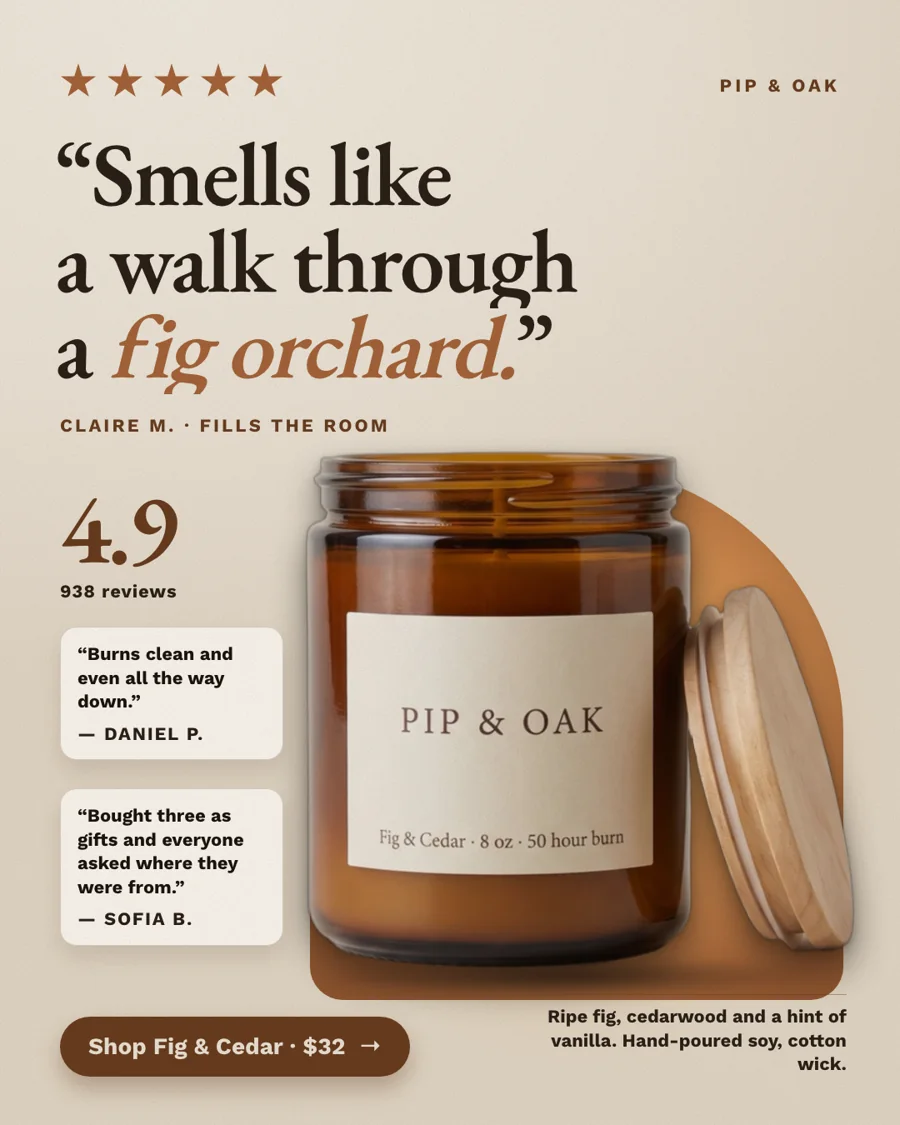
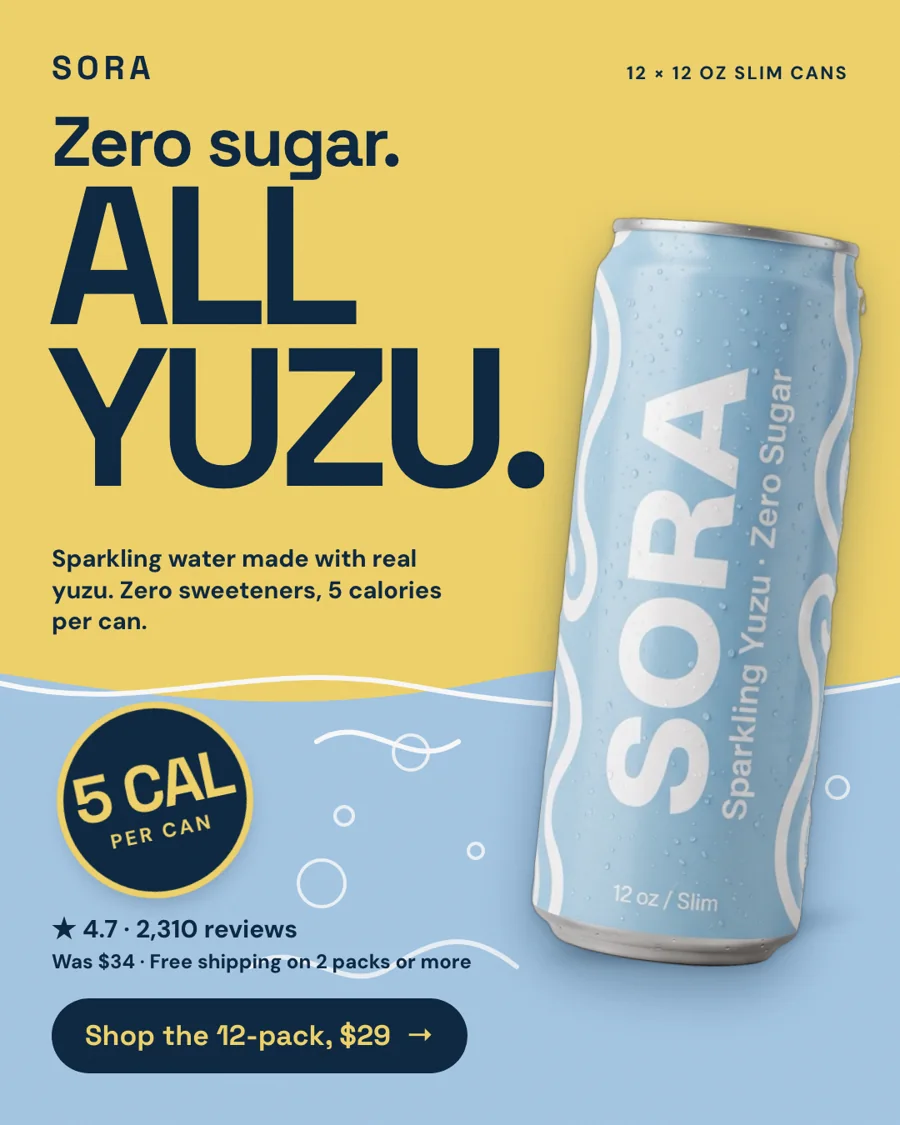
- Product-led over text-heavy. Google adds your headlines in many layouts, so images with a big product and little text work best.
- Several images, not one. Upload a handful of landscape and square images so Google can rotate them and learn.
- Keep offers current. A sale price in an image stays there until you replace it. Each batch reads your store fresh, so swap in new images when prices change.
- Match the landing page. Link each image to the product it shows.
How to upload them
- Download a batch as one ZIP, or single files, from your StoreToAds library.
- In Google Ads, open a Display or Performance Max campaign and add the 1.91:1 files as landscape images and the 1:1 files as square images.
- Add your logo, headlines and descriptions, then check Google's ad preview before you publish.
There is no Google connection in StoreToAds: sending ads directly is only available for Meta today.